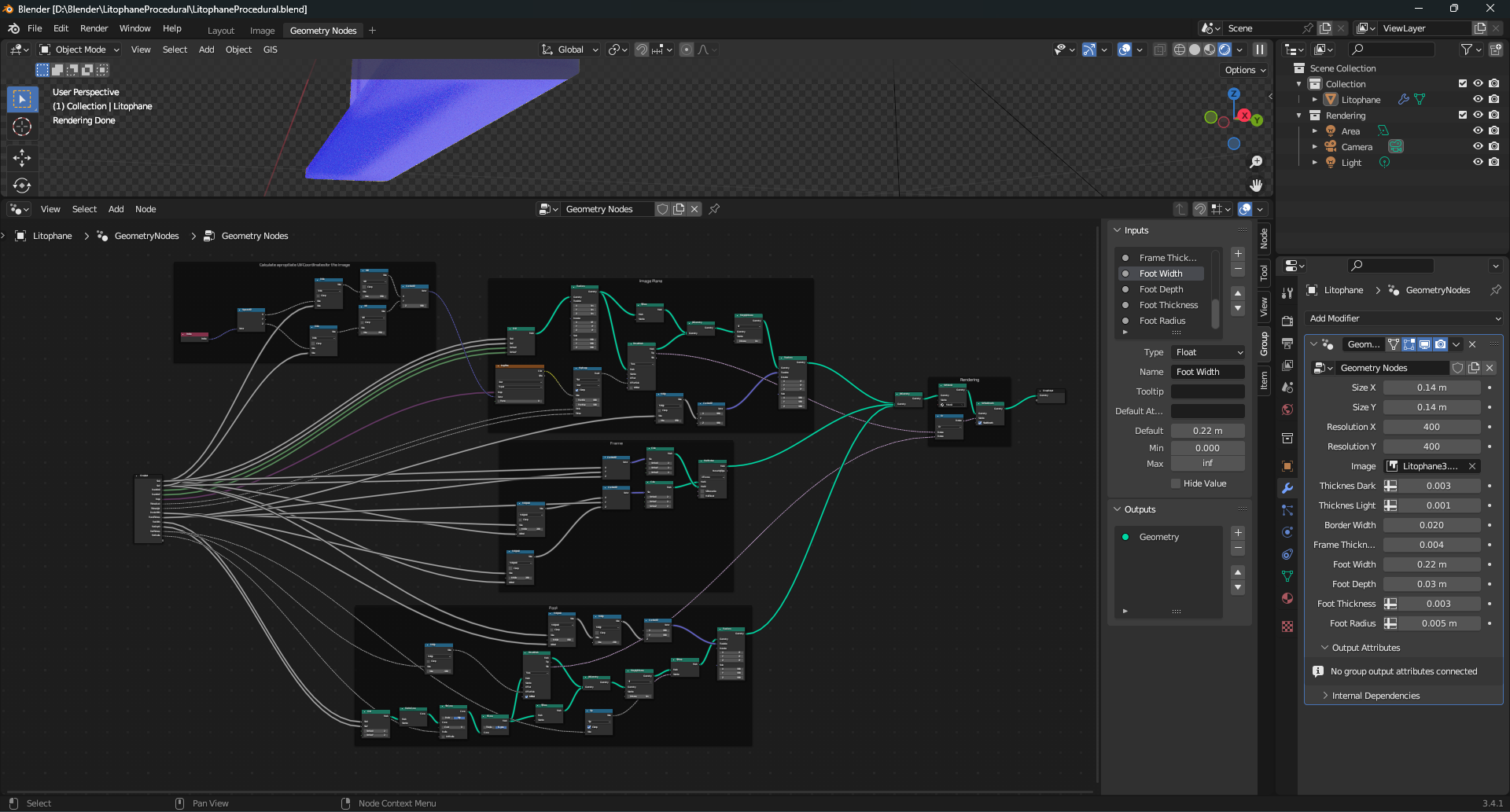
Download and open LitophaneProcedural.blend in blender. Because the model relies entirely on geometry-nodes (blender version 3.4 or newer is recommended, Versions earlier than about 3.2 won't work at all, due to the geometry node system lacking features or missing entirely.)
Loading an Image
Go to the Image-tab and click Image>Open…
Then select your image file in the File Dialog.
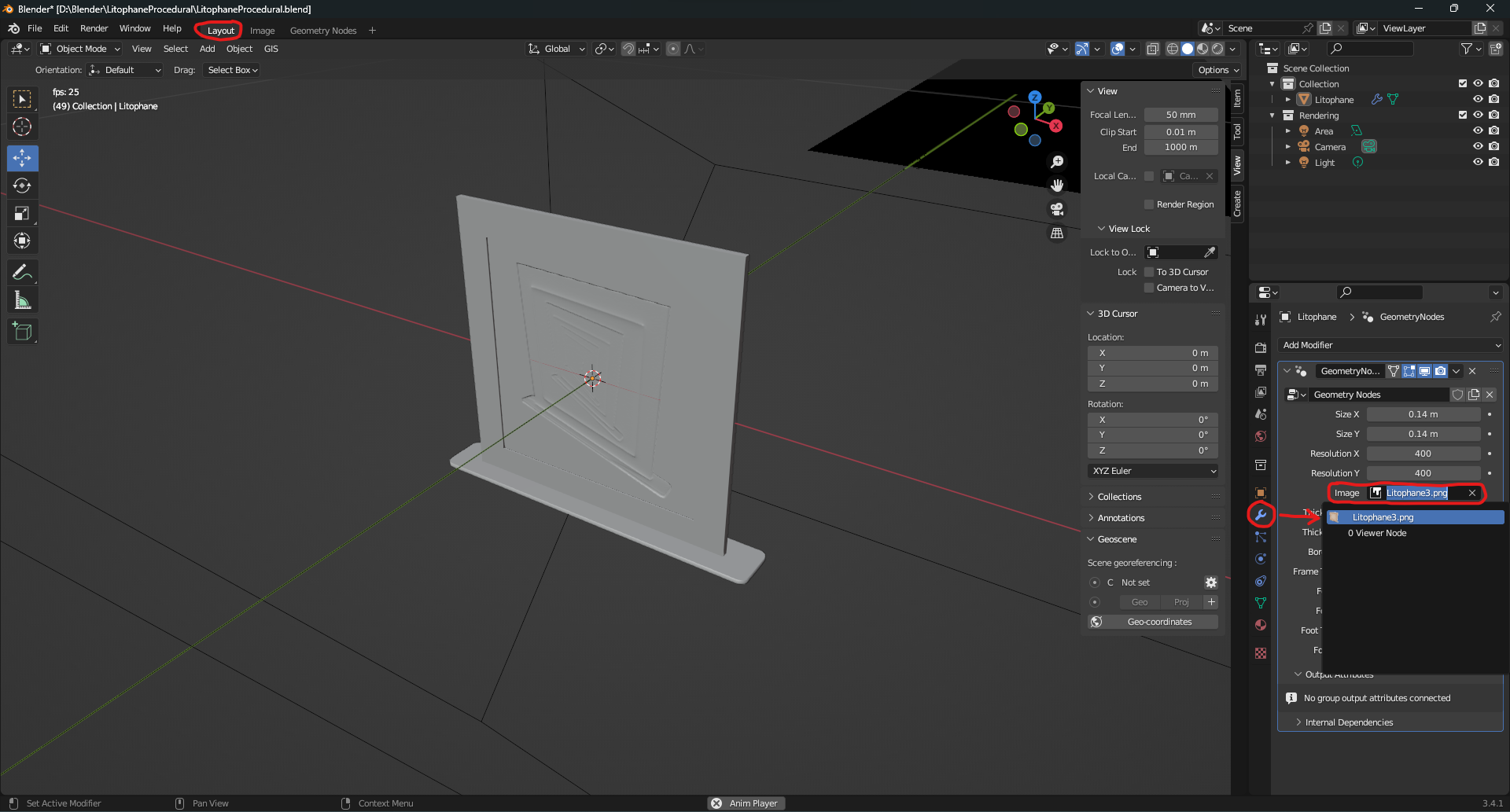
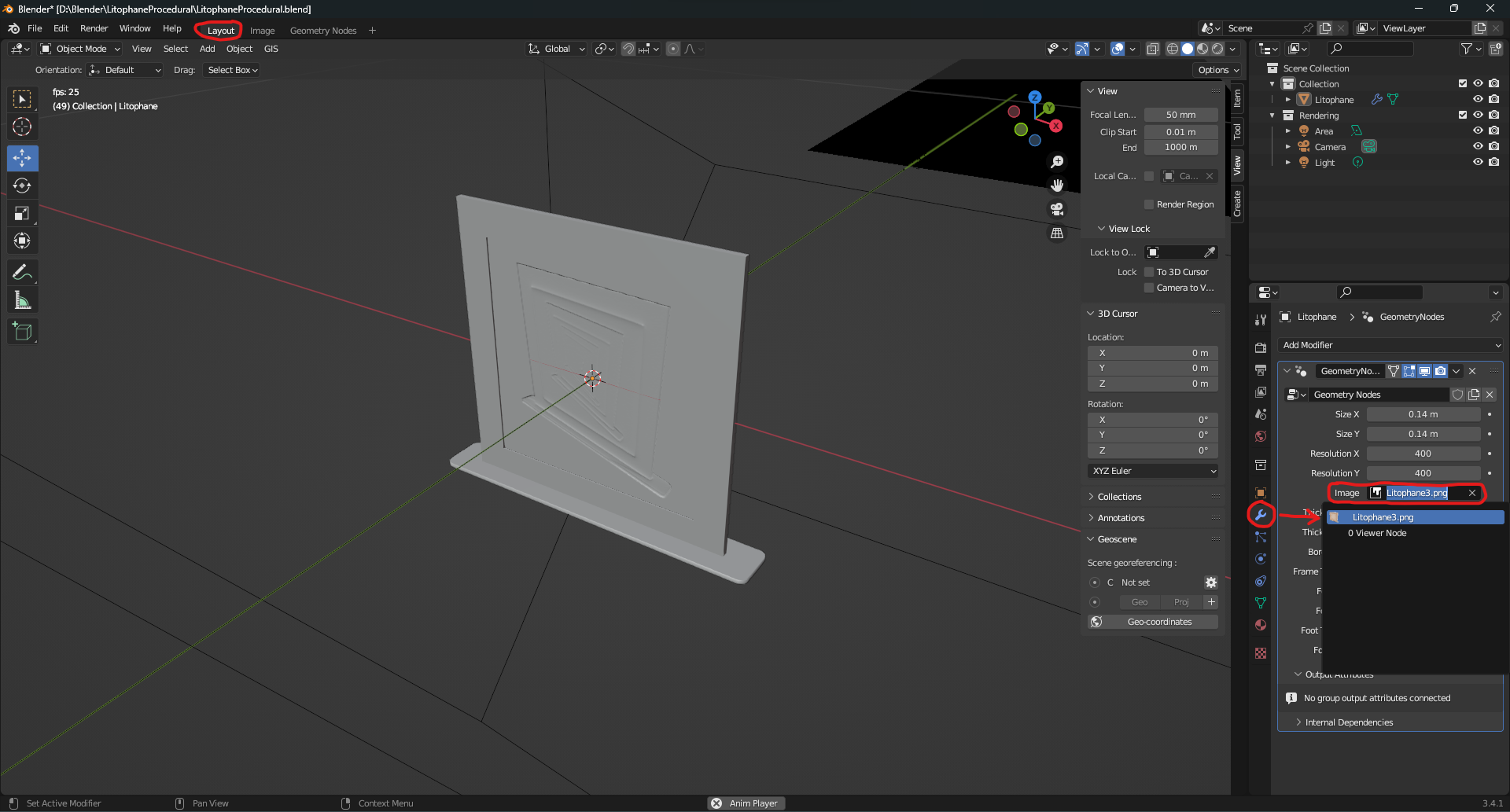
Go Back to The Layout Tab. Select the model (left click) and in the Modifier Panel, in the geometry node modifier click on the field labeled “Image”.
in the dropdown select your image.
The Model can be customized over the geometry node modifier in the layout tab.
The aspect ratio Size X to Size Y should be the same as the original image.
Resolution X and Resolution Y determine how many Faces There are used in X and Y direction. respectively. Higher values result in better quality but have a significant impact on the size of the resulting stl-file.
To disable the foot. It is recommended to set the foot height to the same value as your first layer height, so that it acts like a brim instead. using concentric infill for the bottom layer is recommended in this case.
Thickness Dark and Thickness Light determine how thick fully black or fully white parts of the image are printed. The ideal values may depend on the contrast of the image, as well as the used filament.
Export the model as a mesh.
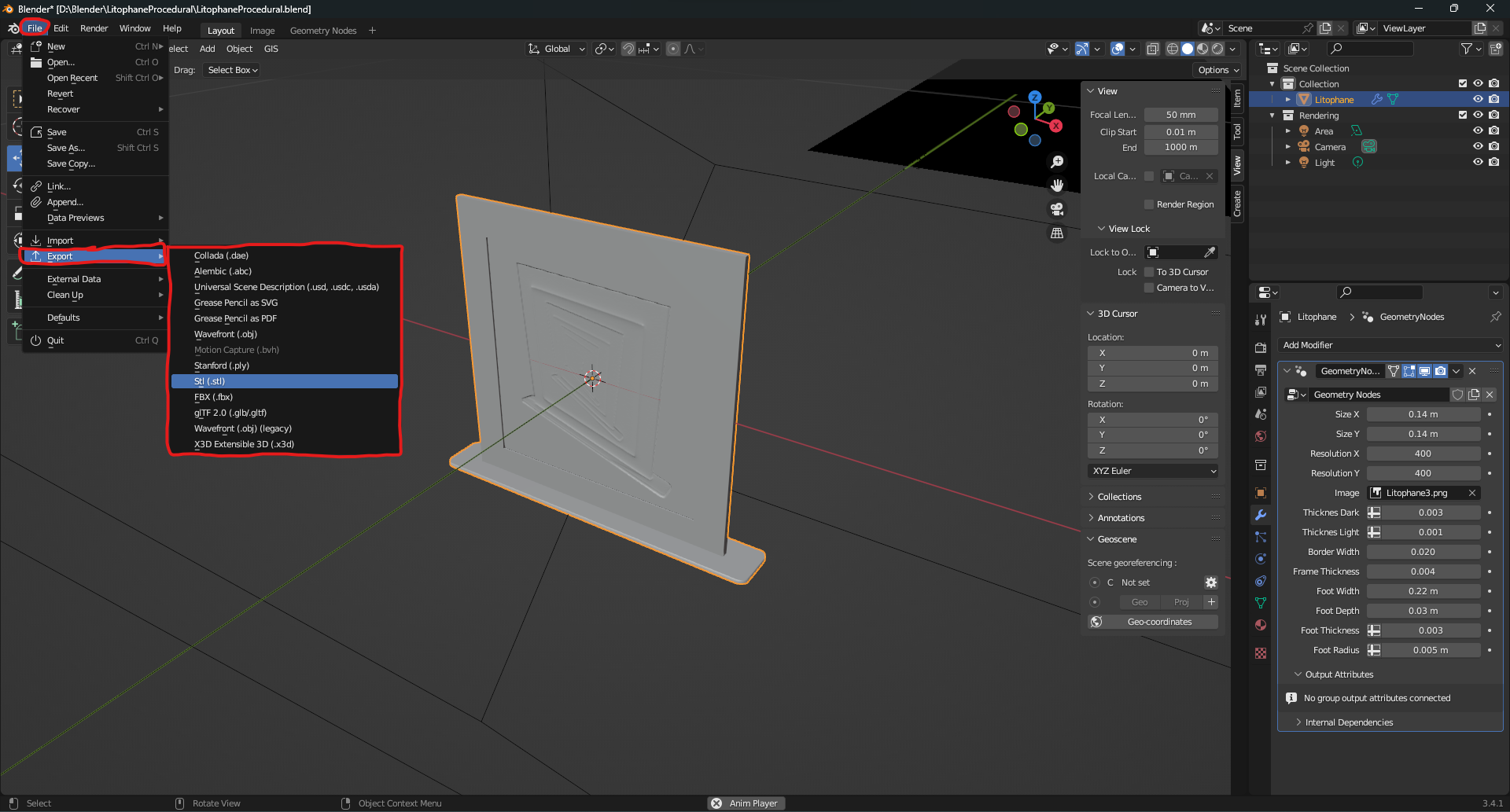
In the layout tab select the model (left click). Then go to File>Export and then select the appropriate file Type (stl is recommended).
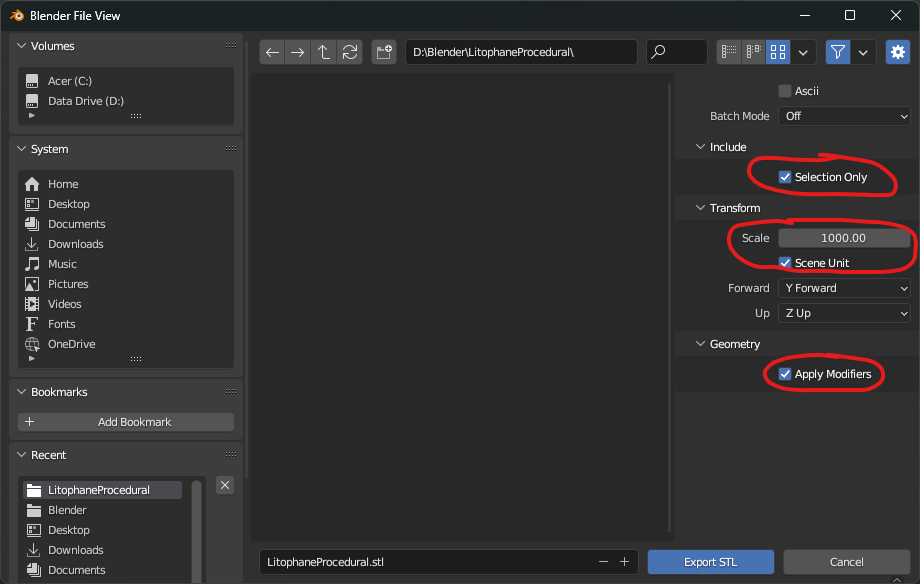
In the File Dialoge Make sure the Following is checked. Then Click Save. (Note available options may be different when exporting as different file formats)
Include > Selection Only
Transform > Scene Unit
Transform > Scale Schuld be set to 1000 because blender uses meters, and most slicers use millimeters. Otherwise, the Model would be too tiny when opened in the slicer, since stl doesn't store units.
A note on slicing: Because of the way the model was created the frame, foot and actual image are separate hulls, which could cause problems with some slicers. If a negative value for Foot depth is entered an intersection with the foot will occur. And Id all cases there will be coincident faces. This can cause problems in some slicers. (Prusa Slicer works fine). The coincident face problem is in part due to the way stl-Files work, so exporting as an obj instead might help. Theoretically this Problems could be fixed, by replacing the last Join-Geometry node by a Mesh Boolean node set to Join, but due to the huge performance hit this is not viable in practice.
Recommended Slicing Settings:
Set Perimeters so that the cross-section of the image-part is filled with perimeter lines.
Translucent or Black Filaments likely won't work well.
The Inner Workings of the Model:
Just a look on the geometry node Network behind the Model.


 0
0 0
0 0
0