BTT CB1 Customization
maker.extruder

AIで類似品を検索
印刷プロファイル(0)
モデルファイル(0)
 0
0 0
0 0
0
公開日時:2026-03-11 00:51:50
0
0
 000
000
Grab a new SDCard (a good one)
install additional software
sudo apt install python3-serialfix qlen
sed -i 's/ 1024/ 128/g' /etc/network/interfaces.d/can0Install Kalico and the rest
cd ~ && git clone https://github.com/dw-0/kiauh.git ./kiauh/kiauh.sh 3) Yes, remember my choice for next time S) [Settings] 1) Set Klipper source repository https://github.com/KalicoCrew/kalico main Y B 1) [Install] 1) [Klipper] ###### Number of Klipper instances to set up (default=1): 1 ###### Create example printer.cfg? (Y/n): n 2) [Moonraker] ###### Create example moonraker.conf? (Y/n): Y 3) [Mainsail] ###### Download the recommended Mainsail-Config? (Y/n): y ###### Configure Mainsail for port (default=80): 80 7) [KlipperScreen] Press enter for default (Yes) Backend Xserver or Wayland (cage)? [X/w]X Install NetworkManager for the network panel [Y/n]n 8) [Crowsnest] Do you want to add 'update manager' entry to your moonraker.conf?[Y/n]:n Reboot NOW? [y/N]: N ###### Perform action: qwhy Kalico? because klipper breaks stuff and there are nome neat danger options like
[danger_options] multi_mcu_trsync_timeout: 0.07 minimal_logging: True log_velocity_limit_changes: False autosave_includes: TrueUse mainsail/fluid to upload your printer config
Migrate Migrate print statistics
cd printer_data/database/ sudo systemctl stop moonraker mv moonraker-sql.db moonraker-sql.db.orig # replace the first part with the folder where the moonraker-sql from # your old sdcard is. this example assumes its right next to your # printer.cfg mv ../config/moonraker-sql.db . sudo systemctl start moonraker
__________________________________________________________________________________________
__________________________________________________________________________________________
Dont undo them, they dont hurt and have a huge impact. You need to restart the appropriated Service to apply changes.
# ssh into the pi and execute the following single line command ~/moonraker-env/bin/pip install -r ~/moonraker/scripts/moonraker-speedups.txt# DISABLE arc fitting in Slicer # reduce gcode arcs in your printer.cfg [gcode_arcs] resolution: 0.3 ; down from Klipper stock 0.1# edit moonraker.cfg [file_manager] default_metadata_parser_timeout: 30 ; ref. happy hare [update_manager] enable_auto_refresh: False ; because mainsail sets it to true# edit: /etc/network/interfaces.d/can0 change # Change txqueuelen to 128 (down from 1024) # only increase if you have 5 or more CAN nodes# while connected to you printer via SSH # modify klipper's core file to increase timeout (for homing moves) # with the following single line command, copy and paste as is: sed -i 's\TRSYNC_TIMEOUT = 0.025\TRSYNC_TIMEOUT = 0.05\g' ~/klipper/klippy/mcu.py # Attention, this will make klipper "dirty" and you need to softreset # via GUI to update. After Update you NEED to reapply the fix.# Move all logs from SDCard to RAM # 2 commands, copy and paste as is: GID=$(id -g) echo "tmpfs $HOME/printer_data/logs/ tmpfs defaults,noatime,nosuid,nodev,noexec,mode=0755,uid=$UID,gid=$GID,size=200M 0 0" | sudo tee -a /etc/fstab # Special note if you mapped pi to biqu user # while it totally works as it it would be best # to move the newly created line from this command # below the other entry that bind mounts pi to biqu home folder also create a bind mount for pi to biqu logs if you are sshing with pi (see compat below and also crownests is hard coded) echo "/home/biqu/printer_data/logs/ /home/pi/printer_data/logs/ none defaults,bind 0 0" | sudo tee -a /etc/fstab
It feels like the cb1 or the old Linux image its based on struggled to just in time adjust cpu requencies.
# connect to your printer via ssh # run these lines one after each other sudo apt-get install cpufrequtils # Single line command, copy and paste as is: echo '%sudo ALL=(ALL:ALL) NOPASSWD: /usr/bin/cpufreq-set' | sudo tee -a /etc/sudoers.d/cpufreq-set sudo chmod 440 /etc/sudoers.d/cpufreq-seteither stop here and manually set your CPU governor with
sudo /usr/bin/cpufreq-set -g performance each boot or continue
or continue.
Either use kiauh to install G-Code Shell Command Extension or use the following single line command from linux ssh
wget -O ~/klipper/klippy/extras/gcode_shell_command.py https://raw.githubusercontent.com/dw-0/kiauh/master/resources/gcode_shell_command.pyadd these to your macro.cfg or printer.cfg
[gcode_shell_command cpufreq_set] command: sh -c "sudo /usr/bin/cpufreq-set -g $0" timeout: 5.0 verbose: True [gcode_macro _cpufreq_set] description: set cpu governor gcode: {% set governor = params.GOVERNOR|default("performance") %} RESPOND MSG='{"CPU set to %s" % (governor)}' RUN_SHELL_COMMAND CMD=cpufreq_set PARAMS={governor}Adjust your start/end print gcode to set the governor
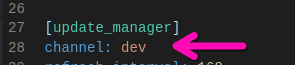
## End Print Macro / Idle Timeout _cpufreq_set GOVERNOR=ondemand ## Start Print _cpufreq_set GOVERNOR=performanceremove the DEV channel from moonraker.cfg (simply delete the whole line)
Do them if you still have issues, they will turn off nice to have features tho.
# Disconnect all USB cameras # stop and disable crowsnest service sudo systemctl disable crowsnest sudo systemctl stop crowsnest# Disable klipper-linux mcu # Manually remove the references from your printer.cfg # and then stop and disable the service with the following commands: sudo systemctl disable klipper-mcu sudo systemctl stop klipper-mcu# stop and disable klipperscreen sudo systemctl disable klipperscreen sudo systemctl stop klipperscreen
This should fix compatibility issues for scripts and plugins that have pi hard coded in them.
You need both steps.
Create the pi user and give him the same ID as biqu (1000).
useradd -o -u 1000 -g 1000 pi # user usermod instead of useradd if pi already existsthis makes ssh pi@host go to /home/biqu
basically pi = biqu
created a bind mount from /home/biqu to /home/pi which then looks and works like real data so all comments referencing /home/pi/klipper or so work.
add to the /etc/fstab with nano or vim & reboot
/home/biqu /home/pi none defaults,bind 0 0(the spaces are important, can have more but please no tab characters)