Des pièces et des accessoires imprimés en 3D. > Accessoires
Ajouter un profil d’impression
Signaler le modèle
Trouver des similitudes avec l'IA
Tous les appareils
Ouvrir dans Flash Studio Desktop
Ouvrir dans Orca Slicer
Télécharger le profil d'impression (3MF)
Télécharger le fichier modèle (STL/CAD)
Aucun fichier source du modèle
Profil d’impression(0)
Fichier modèle(0)
0
1
0
Publié:2026-01-26 03:04:50
1
0
Description
Tags
Source du modèle
Avis(0)
Overview
A simple OpenSCAD file that quickly and easily add a custom label to almost any STL file. Quickly export your new STL or 3MF files for printing. I have included a speed benchy for easy labeling.
Instructions
I have also placed general instructions inside the file for you to reference, but we will generally go over it here as well.
You can do this, do not be intimidated.
download and install OpenSCAD for your computer here.
Download my provided files. Place your STL file on your desktop(or anywhere you prefer) and open the downladed OpenScad file. I have included a Benchy with all branding removed that you can use or you can use any STL file you like such as a 2D Benchy.
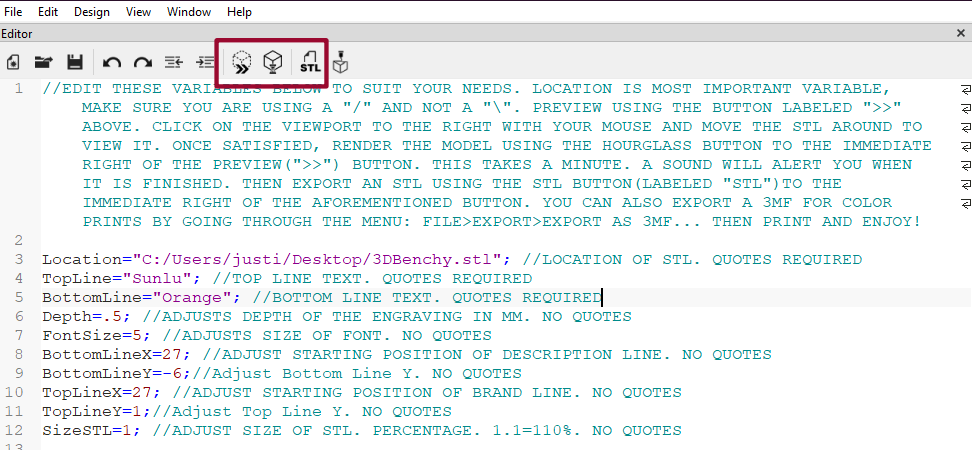
Edit the variables to your liking in the file. The most important being the location of your STL file. To get this you can simply right click the file and click copy as path. Note that if you do this on windows you will need to change all “/” to “\”. Your workflow will be as follows: Preview>Render>Export. The buttons highlighted below are the 3 you will use, from left to right. Make sure your file location is using "/" and not “\” if on Windows.
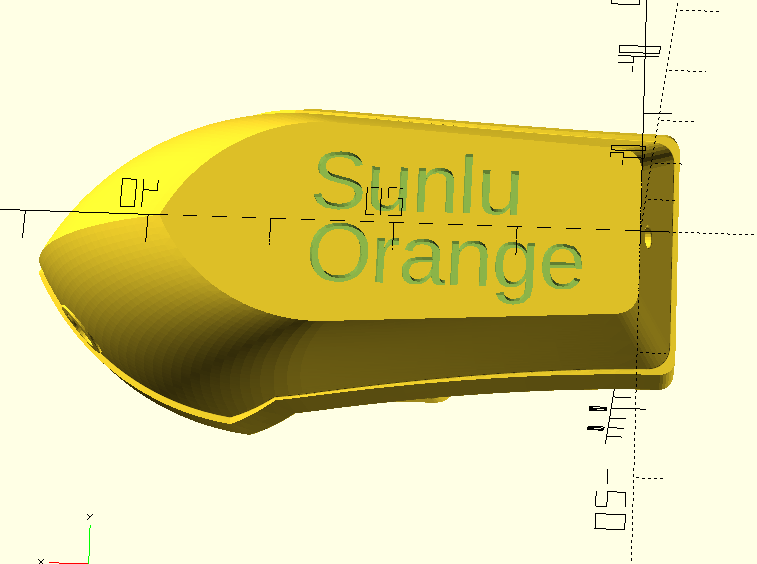
You can preview the file in the viewport using the button labeled “>>”. You can simply click on the viewport and move it around with your mouse to see your label on the bottom like the image below. Render using the hourglass button to the right of the preview button. Once satisfied, it is time to export(create your file). You must click render before you can export.
To export you can just click the button to the right of the render button labeled “STL” to generate an STL file. If you want a 3MF for custom color printing you can click File>Export>Export as 3MF.
NOTE: IF YOU USE A DIFFERENT STL YOU WILL HAVE TO ADJUST THE X AND Y POSITIONING VIA THE VARIABLES.
Printing
Simply open your newly created file in the slicer of your choice and print. Enjoy!


 0
0 1
1 0
0